Kamis, 09 Agustus 2012

For Linux Mint Lovers How to upgrade to a newer release

A. Introduction

This tutorial explains how to upgrade to a newer release of Linux Mint.

B. General considerations

B1. Do you need to upgrade?

If things are working fine and you're happy with your current system, then you don't need to upgrade.
A new version of Linux Mint is released every 6 months. It usually comes with new features and improvements but there's nothing wrong with sticking with the release you already have. In fact, you could skip many releases and stick with the version that works for you.
Each release receives bug fixes and security updates for about 18 months (or 3 years in the case of "Long Term Support" releases such as Linux Mint 5 or Linux Mint 9). The development team is also focused on the latest release. If bug fixes and security updates are important to you, you should regularly upgrade to the latest releases, otherwise there's nothing wrong with keeping things as they are.
As a general rule... unless you need to, or unless you really want to, there's no reason for you to upgrade.

B2. Important aspects

The most important things when it comes to upgrading are:
  1. That your data is safe
  2. That you end up with a fully functional system
Your personal data is the most valuable thing in your computer. If anything happens and you break your operating system, it's not a problem, it can be reinstalled. If you lose your data... that's a different story.
So. No matter what way you're going to upgrade. The first thing to do is to make a backup of your data.
You'll also want to make sure that the release you're upgrading to is right for you. Every release comes with a different kernel. This means that it handles hardware differently. For instance, you may find out that a graphic card or a wireless adapter which currently works fine for you under Linux Mint, isn't recognized by the newer version of Linux Mint you're planning to upgrade to. In some cases, this could mean that upgrading to this release is the wrong decision, maybe you're better off skipping that particular release? There's only one way to know: you need to try it.
Linux Mint comes as a liveCD. Thanks to this, you can try the newer release on your computer and see if your hardware is recognized before proceeding to the upgrade.
To be safe:
  1. Make a full backup of your data on an external device (USB stick or CD/DVD)
  2. Download and burn the liveCD of the newer release, and check that your hardware is fully functional with it.

C. The different ways of upgrading

There are many different ways of upgrading to a newer release but we can categorize them in two different families: "fresh" and "package" upgrades.

C1. "Fresh" upgrades

In a "fresh" upgrade you use the liveCD of the new release to perform a new installation and to overwrite your existing partitions.
A "Fresh" upgrade consists of the following steps:
  1. Making a backup of the data
  2. Making a backup of the software selection
  3. Performing a fresh installation using the liveCD of the new release
  4. Restoring the data
  5. Restoring the software selection
This is the recommended way to upgrade Linux Mint and it offers the following advantages:
  1. Safe: Your data is backed up externally. Whatever mistake you make or whatever bug happens during the installation cannot affect it.
  2. Fast: The installation usually lasts 10 minutes. The CD for the new release is less than 700MB and it contains about 3GB of compressed data. Downloading the ISO and upgrading from the CD is much faster than upgrading the system from the repositories.
  3. Reliable: First, you get the opportunity to test your hardware detection in the new release using the liveCD. If anything is wrong you can simply decide not to upgrade, it's not too late. Second, you end up with a fresh installation of Linux Mint, i.e. a system that was fully tested by the development team and the community.
  4. Easy: Things do go as planned this way.

C2. "Package" upgrades

A "package" upgrade consists of the following steps:
  1. Pointing APT to the repositories of the newer release
  2. Asking APT to perform a full upgrade
APT is the package management system used by Linux Mint. Alternatively, some releases were given a graphical upgrade tool to perform these steps.
This way of upgrading Linux Mint should only be recommended to advanced users.
Here are the pros and cons of upgrading the system this way:
Cons:
  • Slow: APT will download the new version of all the packages installed on your system. Assuming you installed nothing at all, that's about 3GB of data.... using a fresh upgrade you could have downloaded all that data by simply getting the 700MB ISO.
  • Unreliable: Depending on your modifications, your sources, your added software and your configuration you could end up with a system that acts and feels really different than a brand new version of the newer Linux Mint release. You're far from the beaten track and the added features might not work as well on your system as they were designed to.
  • Risky: The temptation when you upgrade with APT is not to perform backups... since your partitions aren't overwritten, nothing "forces" you to make backups... think about the risk though.
  • Complicated: Packages conflict with each others, they can bring complex dependencies and put you in situations that are difficult to solve.
Pros:
  • Automated: APT does everything for you (well, until something goes wrong of course)
  • Real upgrade: A "fresh" upgrade is kind of like the new Linux Mint with your data on it... this in comparison feels more like "your system" running the newer version underneath.

D. How to upgrade

In this tutorial we'll use a "fresh" upgrade.

D1. Make a backup of your existing system

You need to save your personal data and your software selection: Your personal data, simply because you don't want to lose it... and your software selection, because post-installation you don't want to have to reinstall all the applications you've added to your system.
D1.1 Get a recent version of mintBackup
If you are running Linux Mint 9 or a later version, you can skip this paragraph and move to section D1.2.
If you are running Linux Mint 8, do the following:
  1. Launch Firefox and go to http://packages.linuxmint.com/list.php?release=Isadora
  2. Find the line for "mintbackup" and click on "all" in the "DEB" column to download the package
  3. Once downloaded on your computer, double click the .deb file to install mintBackup.
If you are running an earlier version of Linux Mint (5, 6 or 7), do the following:
  1. Download mintBackup from here: http://packages.linuxmint.com/pool/romeo/m/mintbackup/mintbackup_2.0.2-mint5-1_all.deb
  2. Find the line for "mintbackup" and click on "all" in the "DEB" column to download the package
  3. Once downloaded on your computer, double click the .deb file to install mintBackup.
D1.2 Backup your data
Open mintBackup from the Menu -> Administration -> Backup Tool
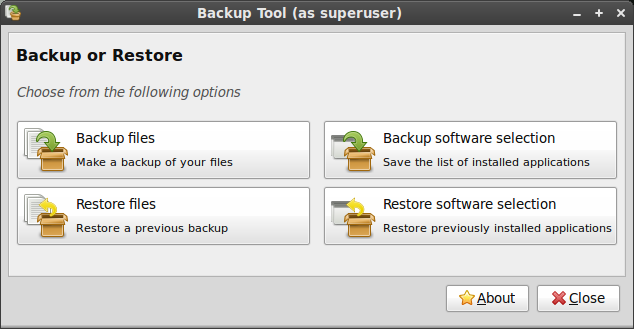
Click on "Backup files".
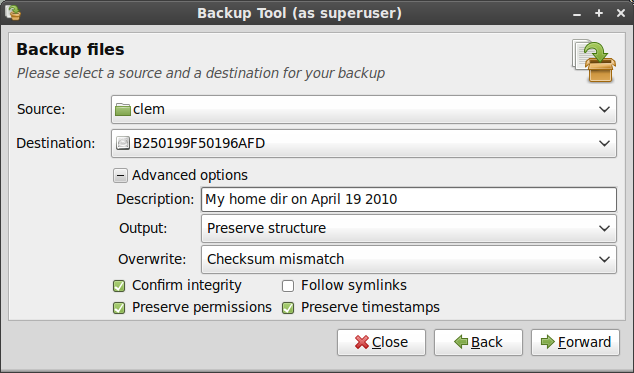
  1. Select your home directory for the source.
  2. Select where you want to backup the files as your destination (ideally some external volume since the plan is to format this partition during the installation)
  3. In the advanced options choose the following:
    1. A description (that's always a good idea to add to a backup)
    2. The output format (whether you want to save the backup as a directory, or an archive... archives take longer but if you plan to backup to NTFS/FAT volumes, archives preserve permissions that cannot be preserved by directories on these Windows filesystems)
    3. Overwrite (you can ignore this setting, it only comes into play if you plan to update an already made backup)
    4. Confirm integrity: slower but more reliable, it checks the signature of each file after it was backed up.
    5. Preserve permissions and timestamps: This should be selected.
    6. Follow symlinks: Not needed.
  4. Click "Forward"

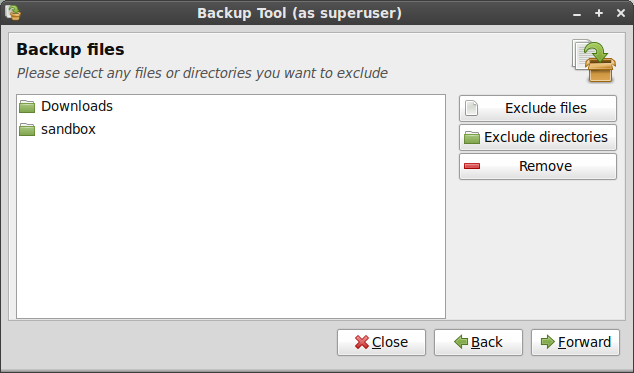
To save space and time, exclude things you don't need. For instance, I don't need to backup my "sandbox" and "Downloads" directories, but that's just me.
When you're ready, click "Forward".
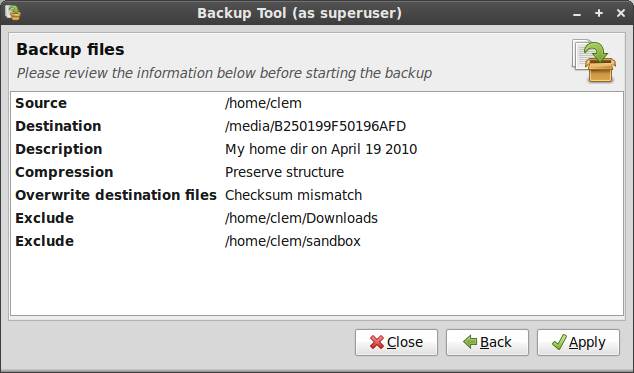
Review the information about your backup and press "Apply".
Note: When the backup is finished. Make absolutely sure to check the result yourself. No matter how much trust you put in the backup tool, head towards the destination, and check that all your files and directories were backed up successfully. If you chose to backup as an archive, make sure to open it up to see if it's working and whether or not it contains everything that it should. The tool is stable, but there can always be a bug or you could have made a mistake... since we're talking about your data here, make absolutely sure before anything else.
D1.3 Backup your software selection
Open mintBackup from the Menu -> Administration -> Backup Tool

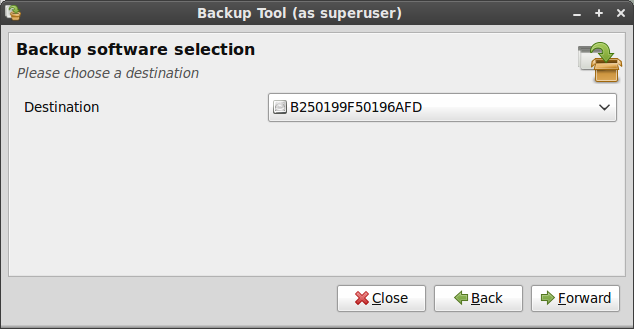
Click on "Backup software selection".

Choose a destination (ideally some external volume since the plan is to format this partition during the installation).
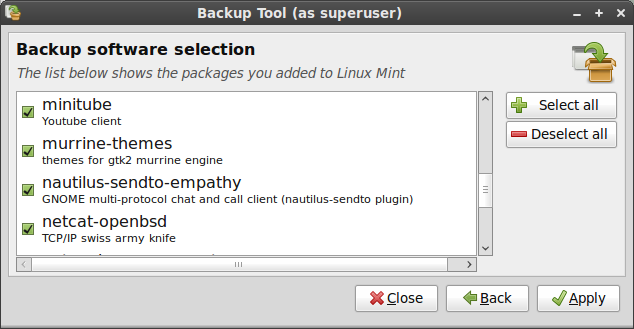
The following screen shows you all the packages you added to your Linux Mint system. Select the ones you want to exclude from your backup and click "Apply".
Note: When the backup is finished (it shouldn't take long), go to the destination and check for a file which name starts with "software_selection". This is the backup of your software selection.

D2. Test and install the newer version of Linux Mint

  1. Download the ISO for the newer version of Linux Mint.
  2. Check its MD5 signature.
  3. Burn it at low speed on a liveCD.
  4. Boot from the liveCD and select the option "Check disk integrity".
  5. Boot from the liveCD and select "Start Linux Mint".
  6. Once on the live desktop, check that your hardware is properly recognized (graphics card, wireless..etc)
  7. Once you're happy and confident that this newer release is good for you, click on "Install" on the desktop and proceed with a normal installation.
  8. When asked by the installer, choose "Specify partitions manually (advanced)", select the partition that you used for your current installation of Linux Mint, assign "/" to it, and reformat it to "ext4".

D3. Restore your data and your software selection

D3.1Restore your data
Open mintBackup from the Menu -> Administration -> Backup Tool

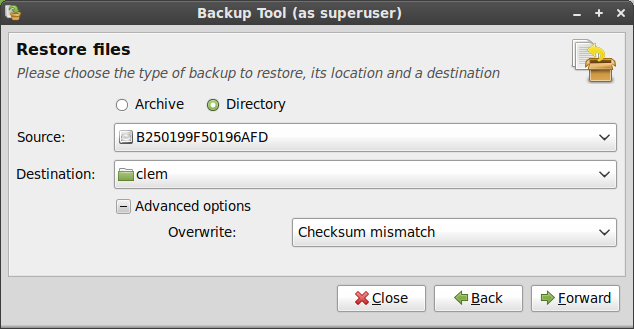
Click on "Restore files".

If you backed up your data as an archive, choose "Archive", otherwise choose "Directory", then point the source to either your archive or the location where you made the backup of your data.
Set your new home folder as the destination.
You can ignore the advanced options since your home folder is empty at the moment. These settings are only there to optimize things for people running regular backups.
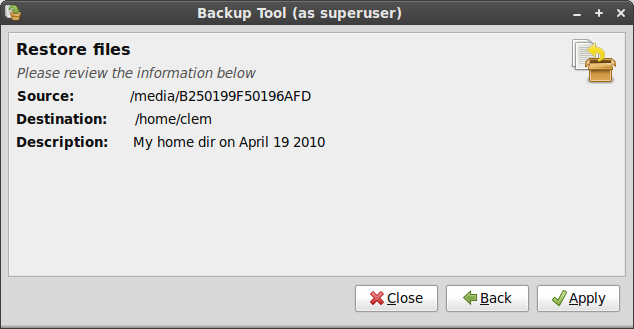
Review the information and press "Apply" when ready.
D3.2 Restore your software selection
Open mintBackup from the Menu -> Administration -> Backup Tool

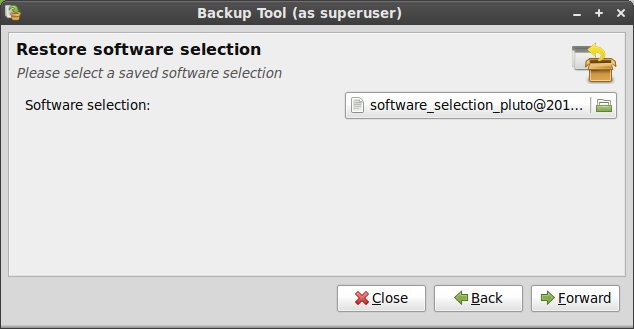
Click on "Restore software selection".

Select your backed up software selection file and press "Forward".
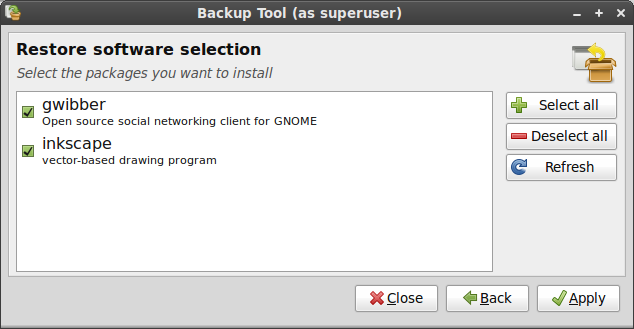
In the next screen you can see a list of packages. Select the ones you want to install and press "Apply".
This list only contains packages which were part of your previous software selection and which are not installed in the present system. The packages which are already installed in your new system don't need to be installed again, so they don't appear in this list.
At any moment, you can press the "Close" button. You don't have to install everything. If you change your mind later on, just launch the Backup tool again and restore your software selection using the same backup, the list will appear and show you the packages you're missing.
If you were using PPA or other repositories and if some of your previously installed packages are not found by the present system, these packages will appear in the list but you won't be able to select them. If that is the case, update your APT sources using the Menu -> Administration -> Software Sources tool to add the missing repositories, then click on the "Refresh" button in the Backup Tool.
Note: The "Refresh" button refreshes the list, not your APT cache. If you update your /etc/apt/sources.list manually, make sure to run "apt update" in the terminal.

E. Frequently Asked Questions

E1. Why doesn't Linux Mint upgrade the way Ubuntu does?

From our point of view, Ubuntu does three things wrong:
  1. It doesn't make it easy for you to backup your data, nor does it warn you to do so.
  2. It automatically asks you to upgrade to the latest version. You click on the "upgrade" button and there's no turning back. No explanation about the risks involved, no explanation about the pros and cons... just a simple button to click for a process you likely don't understand.
  3. It uses a "package" upgrade method. See section C2 for pros and cons associated with this method.
The only advantage Ubuntu offers is that it makes the process trivial and fully automated. Though, considering the risks and the way it upgrades your system, this should be considered dangerous. We do not even recommend this on the command line, so to have it triggered from the click of a button is just not acceptable to us. It's easy alright, but it's not the right solution. Sometimes things are important enough for us to take the time to do them properly. When it comes to upgrading, it's important to backup your data, to test the release before installing it and to avoid any broken or conflicting packages. The method chosen by Ubuntu is fully graphical and extremely easy to use, but it fails to do just that, and that's what matters the most.

E2. Wouldn't it be better if Mint was a rolling distribution?

Yes and no.
A "rolling" distribution is a distribution which doesn't jump from release to release, packages are continuously updated. Thanks to this, users do not need to upgrade to any newer release of course, but the trade-off is stability and pace. It's easier to test a system when it's "frozen". With a moving base of packages, each new change can potentially introduce problems with the other packages... on a distribution featuring more than 30,000 packages it would take days to perform a full regression test after each package update!
Debian is a good example of this. The stable branch is a frozen snapshot of the testing branch. The testing branch itself isn't considered fully stable and it can take a while before some new packages appear into it. Of course, thanks to the nature of rolling distributions, any regression introduced by a new package can be fixed a few days later. Overall, rolling distributions are quite stable, as users are quick to report broken features and developers are quick to fix them... problems happen, and they get fixed.
With a frozen base, there's a lot of testing going on, after which things are not likely to break. This also gives the distribution 6 months between each releases where the developers don't need to worry about upgrades and can spend their time on development and innovation.
Most distributions available nowadays adopt a release cycle. Notable exceptions include Debian (excluding the "Stable" branch which isn't considered a "rolling" distribution), Arch Linux, Gentoo, PCLinuxOS, Sidux and Foresight Linux.

E3. How can I upgrade using APT?

This is something we do not recommend

The 5-Minute Essential Shell Tutorial (from LinuxMint)

Alright, far too often (especially in the IRC channels) there is a time where even the most beginner of users are faced with the terminal.  It has many names: terminal, shell, console, "command prompt" even as a carryover from those familiar with Windows.  Many people are frightened by it for some reason or another, so this tutorial will attempt to provide you the most basic of commands to enable navigation and basic system actions from the comfort of your keyboard.
Let's get started shall we?  Since everyone's Mint version can be different, I'm not going to detail how to actually open the terminal.  I'll assume you can find it in the menu or by right-clicking in the desktop.
Facts:
  1. You can do almost anything in a terminal which you would also do from a GUI interface.
     
  2. Most commands were designed first to work in the terminal, then a GUI put on top of them.  That's why some GUI's may feel clunky - they were an afterthought at times.
     
  3. The default location for your terminal to open from the menu is in your home folder, also known as ~
     
  4. Your current directory can be noted by the . operator.  Most commands when they act on the current folder selection, operate on .
     
  5. Commands, locations, and files are case sensitive.  /home is not the same as /HOME or /Home.
     
  6. Use the tab key to complete file names.  If you have a long driver titled, for example,
    driver-128947232jaseu.sh, simply type dri and it will fill in the rest, provided you don't have 2 names starting with "dri" and if you do, add another character to make it "driv" and try again.
     
  7. Almost any command can be read about in full using the manpage or by typing -h or --help after writing the initial command.  This syntax is either man command_namecommand_name -h, or command_name --help.
     
  8. To get even more information, you can use info.  A command can be searched for by using info command_name.  For most of these commands which are part of the coreutils package, one can find info as well using info coreutils command_name invocation where command_name is replaced by the command searched for.
     
  9. Almost any command can also explicitly display what is happening.  This is done usually by the -v or --verbose
     
  10. You can specify multiple command flags to a command at a time to get more information (see the ls -al example below.)
     
  11. Command names are not always obtuse - due to space limitations in the old days of Unix they were shortened, and the conventions stuck.
Commands:
cd -> Used to navigate the directories.  You can move to any location by path.
  1. cd This will move you back to your home, same as cd ~
  2. cd .. This will take you back exactly one directory.  Starting in /home/justin/Desktop, cd .. will put me into /home/justin.  This can be expanded upon, cd ../../ from the Desktop location instead will move me 2 back, from my Desktop to /home.
  3. cd foldername/ This will move you forward to the given folder in your current folder.  Take note of the missing prefix / it is an important omission.  if I am in /home/justin and I want to get to Desktop, I must type cd Desktop/ without the / before Desktop.  Typing / before it places us in the root of file system, which is incorrect.
  4. cd /some/other/path This will take you to the specified folder path, supposing it exists as typed exactly.  Don't forget your tab completion!
ls -> Used to list folder contents.  You can view many kinds of file and folder attributes.
  1. ls By itself, ls will simply list all your files in the current folder.  From fact #4, this literally does ls .
  2. ls -l Provides a longer listing format including owners, permissions, size, and date modified.
  3. ls -a Displays hidden files and folders as well as the normal listing.
  4. ls -al Combine options to display both hidden files and in the long format.
  5. ls -h Show file sizes in human readable format (K, M, Gbyte) filesizes instead of bytes.  Often used in conjuction with the -l flag.
  6. You can view files in directories you are not even in.  If I am in /home/justin/Desktop, and I want to view a file in /home/justin, I can do ls ../ list files one directory back (and not have to go back to do so.)
cp -> Copy files
  1. cp file /path/to/folder Copies specified file to the given path.
  2. cp -r folder /path/to/folder  Copies recursively the contents of the folder to another folder.
  3. cp *.extension /path/to/folder  Copies files matching the given extension to the new folder.  To copy all .doc files, it becomes cp *.doc /path/to/folder and the folder must exist.
  4. cp name* /path/to/folder  Copies all files starting with 'name' to the given folder.  To copy all files starting with example, it becomes cp example* /path/to/folder and the folder must exist.
mv -> Move files
  1. The syntax of mv is similar to the example above with cp exempt for example #2.  mv does not take the -r flag since moving a folder also moves its contents.  The syntax is not exact in all instances, but works with the above examples.  Consult your manpages for more details.
rm -> Remove files
  1. For all intents and purposes, removing files via rm is permanent.  It does not use the Trash bin.  Use with caution and make sure you are deleting explicitly what you want, not what you think you want.  If you decide to get fancy with your delete commands, it's probably going to come back to bite you.
  2. rm file  Remove the specified file from the system.
  3. rm -r folder  Remove the specified folder from the system
  4. rm -rf folder  Removes the specified folder forcefully from the system.  This command can severely break your configuration if used incorrectly as it will not prompt you if something critical is being deleted.  If you have to use this, chances are something more is broken or there was a mistake made.  This should only be used as an absolute last resort method and is not recommended.
nano -> full command line text editor
  1. One can edit files using nano in a terminal to do quick and dirty files all the way up to full configurations.  It's handy, but keep in mind it handles plain text files and programming files, things like MS Word documents will not open properly! 
  2. If a file is owned by root, it is not editable as a normal user.  nano must be prefixed with sudo in order to save changes.  Otherwise, it will open in read-only mode.
  3. nano newfile.whatever  Nano creates a new file of the specified name and opens it for editing.
  4. nano existing_file  Nano opens the existing file for editing.
  5. From inside nano
    1. Save file using the ctrl+o key combination, and either change the name or press entier to keep the same name.  This will save the file.
    2. Exit nano by using ctrl+x key combination.  If you have unsaved changes, it will ask if you want to save.
mkdir -> Create directories
  1. mkdir folder_name  Creates the folder with the specified name
  2. mkdir -p /path/to/folder/name  Creates each folder as necessary.  To create folder /home/justin/newfolder/2ndfolder, and only /home/justin exists, using mkdir -p will make both directories newfolder and 2ndfolder.
ps -> List processes
  1. ps aux  List all processes in detail running on the system, including user, Process ID (PID), and name of process.  Using this, one can view their process list and if necessary, kill unnecessary or stalled processes.
kill / killall / xkill -> Kill offending processes.
  1. kill PID  PID is a number referencing the offending process.  One should obtain the PID from a command like ps aux.  If a process refuses to die, one can alternatively specify kill -9 PID which should terminate the process by any means, even uncleanly or if it will mess up the system.
  2. killall program  Killall kills *by name* all instances of said program.  If there are for example 3 firefox sessions open, killall firefox will do just that; kill all firefox sessions.  kill would simply take the specified PID of the offending firefox process you wish to kill, and kill that one only.
  3. xkill is a GUI way to click and kill windows.  Typing in xkill should present a skull-and-crossbones icon, and the next window clicked on will be killed.
Pipes  ->  The most useful thing you will learn in *NIX.  Redirecting output of a program to anothers input.
  1. Pipes are represented by the ' straight bar ' otherwise known as the ' | ' key.
  2. It is a rarely used key in Windows, it is often found on the backslash key.
  3. They are used to link commands together.  Pipes take the output of one command and route it to be used as input for a second command chained together.
  4. Consult more online resources with information about pipes and their use as there are volumes.
> and >> redirectors  -> Send output to a file instead of the terminal.
  1. > is used to *overwrite* currently existing files contents and replace with the output from the new command.
  2. >> is used to *append* information to currently existing files.  This is useful for logging.
  3. Example: ps aux > processes.log  Sends the output of ps aux to the file processes.log for viewing the command output in a text editor and overwrites the current contents of the file. 
tee -> Send output to both a file and the terminal
  1. tee is used in conjunction with a ' | ' in order to take the command output and send it elsewhere.  This is useful if there are errors which fly by the screen before you can read them, this way whatever goes on the screen is also captured to a file.
  2. Example: dmesg | tee boot.txt would run the command dmesg which shows the initial boot info, and the ' | ' sends the output of dmesg to tee, which then does its job by sending it to the terminal and to the log file boot.txt.
File Execution -> So you want to execute files or programs from the terminal?  Make sure it's  marked executable.  If not, see Quick Tip #4 below.
  1. Need to execute a file in the current directory after it is marked executable?  The ./ operator can execute the file as a normal user provided you do not need root rights.  ./ literally means "in the current directory" so it does not work on files outside of the present directory.
     
  2. Need to execute a file not in the current directory?  You must pass the path to the proper executing program.  If it is a python program, it's python /path/to/file and if it is a shell file, it is sh /path/to/file as an example.  There are of course other programs, but these will be the most common for beginners.
     
  3. Need to execute a file with root rights because you received operation not permitted?  Prefix the command with sudo.  Thus, from the above example, sudo python /path/to/file will execute the script with root rights.
     
  4. Need to execute a GUI program from the terminal?  Simply type the program name (case sensitive!) and it will launch.  This will render the current terminal unusable.  Closing the terminal while the program is open will kill the program.  A better way is to background the program, using program_name & and then typing the word exit at the terminal to close it and keep the process running.
     
  5. Need to run a GUI program with root rights from the terminal?  Prefix it with gksudo or gksu and not sudo.  Using sudo to launch GUI applications is a bad habit and should be avoided.
     
  6. Do not, do *not* use sudo simply because something receives "Operation not permitted."  Keep in mind what you are doing as you can absolutely *destroy* systems by running commands in the wrong place with root rights.  This point cannot be emphasized enough.  Make sure your files come from reputable sources.

Senin, 06 Agustus 2012

Arch Linux Distribution Release

Pierre Schmitz has announced the availability of a new installation CD/USB image for Arch Linux, version 2012.08.04:

The August snapshot of our live and install media comes with updated packages and the following changes on top of the previous ISO image:
  • GRUB 2.0 instead of the legacy 0.9 version is available.
  • The Installation Guide can be found at /root/install.txt.
  • ZSH with Grml's configuration is used as interactive shell to provide a user friendly and more convenient environment. This includes completion support for pacstrap, arch-chroot, pacman and most other tools.
  • The network daemon is started by default which will automatically setup your network if DHCP is available.
Note that all these changes only affect the live system and not the base system you install using pacstrap. The ISO image can be downloaded from our download page. The next snapshot is scheduled for September.


Freedom

Another guiding principle of Arch Linux development is freedom. Users are not only permitted to make all decisions concerning system configuration, but also choose what their system will be.
By keeping the system simple, Arch Linux provides the freedom to make any choice about the system.
A freshly installed Arch Linux system contains only basic core components with no automatic configuration performed. Users are able to configure the system as they wish, from the shell. From the start of the installation procedure, every component of the system is 100% transparent and accessible for instant access, removal, or replacement by alternative components.
The large number of packages and build scripts in the various Arch Linux repositories also support freedom of choice, offering free and open source software for those who prefer it, as well as proprietary software packages, for those who embrace functionality over ideology. It is the user who chooses.
As Judd Vinet, the founder of the Arch Linux project said: "[Arch Linux] is what you make it."


Let us know what is your favor Gnu/Linux Distribution.  Please feel free to comment, Thanks.
Arch Linux